If you access Google, you are usually redirected to the country specific Google-search for the country you are in. If you want to disable this redirect, use www.google.XX/ncr (ncr stands for ‘no country redirect’).
Hebrew hyphenation patterns for babel
So… in the last post I convinced LaTeX to typeset Hebrew with texlive and babel. There are still a few details to work out, so this deals with the first one: Hyphenation patterns.
The error:
Package babel Warning: No hyphenation patterns were loaded for
(babel)                the language `Hebrew'
(babel)                I will use the patterns loaded for \language=0 instead.
As Hebrew is not hyphenated at all, this is of no concern that no hyphenation patterns are found. But LaTeXs "solution" of taking English hyphenation patterns leads to very strange results. So tell babel that it shouldn’t try and really there are no hyphenation patterns for Hebrew with:
\makeatletter\let\l@hebrew\l@nohyphenation\makeatother
If this doesn’t work, you might fall back to define a hyphenation pattern length of 255 (see Stackexchange).
Using babel with Hebrew in texlive
Many articles say that to use Hebrew with LaTeX, you should use xelatex instead of Tex Live (which is default on Ubuntu). It IS possible to write Hebrew using Tex Live, here is how. Working minimal example:
\documentclass{article}
\usepackage[utf8x]{inputenc}
\usepackage[hebrew,english]{babel}
\begin{document}
test
\sethebrew
שלו×
\end{document}
On my Ubuntu 12.10 installation this fails with this error (even though I have the packages ‘culmus’ and ‘texlive-lang-hebrew’):
kpathsea: Running mktextfm jerus10
mktextfm: Running mf-nowin -progname=mf \mode:=ljfour; mag:=1; nonstopmode; input jerus10
This is METAFONT, Version 2.718281 (TeX Live 2012/Debian)
kpathsea: Running mktexmf jerus10
! I can't find file `jerus10'.
Solution:
- Get the ‘jerus10.mf’ file from the hebtex LaTeX package (available on CTAN). Don’t install the package, it is deprecated (as in REALLY old).
- Put the ‘jerus10.mf’ file in the folder ~/texmf/fonts/source/hebrew/
- In terminal, run the command ‘texhash’. If it says ‘done’ without error, everything is fine.
The above file should work. It’s not particularily pretty and there are some compatibility issues with some packages that I might address another time. There are two possible error sources if you didn’t copy/paste carefully enough:
1. Enable UTF8X input
! Package inputenc Error: Keyboard character used is undefined
(inputenc)                in inputencoding `8859-8'.
or
! Package inputenc Error: Unicode char \u8:ש not set up for use with LaTeX.
If you want to write unicode Hebrew or copy-paste Hebrew from somewhere, you need to define the input encoding [utf8x], not only [utf8]:
\usepackage[utf8x]{inputenc}
2. Be sure to change the language to Hebrew
! LaTeX Error: Command \hebshin unavailable in encoding OT1.
Fix this by declaring that the following text is Hebrew with
\sethebrew
Undefined references – LaTeX Warning
Sometimes LaTeX tells you this:
LaTeX Warning: There were undefined references.
If you get this warning, you will notice some ?? in your document at places where references should be. For references to sections, tables of figures, just run pdflatex again (and check for typos). For bibliography references you need to run bibtex.
Let’s assume you are writing a LaTeX file with the name ‘report.tex’. Do the following:
> pdflatex report.tex
[...]
LaTeX Warning: Citation `Liu2010' on page 1 undefined on input line 39.
[...]
LaTeX Warning: Reference `fig:results' on page 1 undefined on input line 65.
[...]
LaTeX Warning: There were undefined references.
[...]
LaTeX Warning: Label(s) may have changed. Rerun to get cross-references right.
[...]
> bibtex report
[...]
> pdflatex report.tex
[...]
LaTeX Warning: Label(s) may have changed. Rerun to get cross-references right.
[...]
> pdflatex report.tex
[...]
You need to run pdflatex again twice after calling bibtex. Twice, because layout may change and things end up somewhere else after you inserted the references.
Replace newlines with sed
Sed is a commandline linux tool to replace text in a file or input stream. Typically sed works line-oriented, i.e., a line is read, the expression applied, then the next line is read. Say we have a file where one line is one word. We want to reconstruct the sentence. How to replace all linebreaks in the file with a space? Simple:
sed "{:q;N;s/\n/ /g;t q}"
The regular expression ‘s/\n/ /’ says substitute linebreaks (\n) by a space. ‘g’ says apply this globally. ‘N’ says append the next line to what is processed. Using only ‘N’ would replace linebreaks in every second line. The rest of the thing is a trick to join all lines together. We define the label q (‘:q;’), then we say that in case that there was a sucessfull substitution, go to label q (‘t q’).
Now we have all words in one line. Across sentences! Sentences are separed by an empty line. So easy – replace linebreaks by spaces, replace two adjacent spaces by a linebreak. Gives you one sentence per line, words separated by spaces. Voila:
cat| sed "{:q;N;s/\n/ /g;t q}" | sed "{s/ /\n/g}"
Show blank page when opening a new tab in Firefox
In the about:config, change the preference browser.newtab.url to about:blank.
The most important commands for SVN
Here are the most important commands for using SVN in the command line on Linux. You have to be inside your local folder where you put the svn else it won’t work (most common source for error “Skipping .'” or “. is not a working copy”).
update
To update your local working copy to the newest version that exists on the server (ALWAYS do this before you start to change things or your teammates will kill you!!):
svn update
add
Files you move into the local working copy folder are not added automatically. If you want the file to be part of the SVN, you have to add it. It works for multiple files or folders, too.
svn add
delete
To delete files from the repository, first mark them for deletion:
svn rm
On the next commit, the file will be deleted from the repository and from your local copy! If you want to keep the local copy, do
svn rm --keep-local
revert
With revert, you can undo pending changes in your working copy (e.g. add, delete) before the next commit.
svn revert
Also handy in case you forgot what local changes you made and you want to return to the latest “safe” version from the repository.
Note that this does NOT enable you to go back to a previous already-commited version. To do that, you can checkout the specific version of your repository at some other place (with the option -r) and manually get what you need or follow the procedure outlined here.
commit (changes to the repository)
If you have changed a file, added or deleted something and want to put the changes into the SVN you have to commit it, without that the changes are only in your working copy and not on the server!
svn ci -m ""
log
It is good practice to write log messages with commits. You can review these log messages with
svn log
You should do an update of your working copy before this command, otherwise you will not get all messages. In case this is a lot of messages, you can add a limit, e.g., display only the latest 5 log entries:
svn log -l 5
status
To see which files of your working copy haven’t been committed yet:
svn status
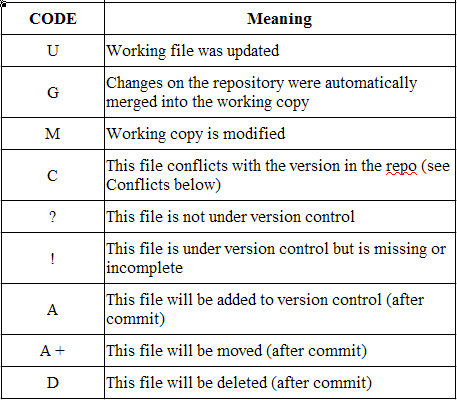
Common SVN status codes:
diff
To see what has changed in a file from the last version to the current version:
svn diff
More resources: You can always use “svn help” to see what else is there or take a look at the excellent book.
A typical SVN session
We assume you have created a working copy and there is already some content in your SVN that you share with others. All of this assumes that you are using some linux shell and are in the folder of your working copy. If you are in the wrong folder else it won’t work (most common source for error “Skipping .'” or “. is not a working copy”).
First thing you do is update (i.e. get the latest changes from the server), in case your teammates changed something. You don’t want to work on an old version!
svn update
Then you open some files, change some things (in "main.adb"), add a new file ("list.adb") and delete a different file ("array.adb"). After two hours work you need a coffee and it’s always a good idea to commit (i.e. send your changes to the server) before taking a longer break. Before you commit, you want to know what changed:
svn status
The message you get will look more or less like this:
M    main.adb
?    list.adb
!    array.adb
This means, you have modified "main.adb", there is a file "list.adb" that SVN doesn’t really know about and "array.adb" should be there, but SVN cannot find it.
If you just commit, only "main.adb" will get changed and on the next update "array.adb" will be restored in your working copy. Why? Because you need to tell SVN explicitly that you want a file to be added or deleted. So let’s do that.
svn add list.adb
svn del array.adb
Now let’s check the status again, the result will be:
M    main.adb
A    list.adb
D    array.adb
We are satisfied and commit the whole thing:
svn ci -m "Replaced array with list, added list.adb, deleted array.adb"
It is always a very good idea to write a meaningful commit message (the parameter -m), so that your teammates know what has been changed. It also makes it easier to go back to a specific version, e.g. the version just before you removed the array.
Creating a SVN working copy (checkout)
You will need to do this once to get the first working copy from the server to your computer.
svn co server_url folder_where_you_want_to_have_your_working_copy
The "server url" isn’t actually a URL like in the internet most of the time. It can be a path to a file (this would work if e.g. if you are inside the IMS and want to access a SVN that is located in a folder that you have mounted) or something with svn+ssh or the like. The one who created the SVN for you should tell you the server URL.
What is SVN?
To say it in very simple terms, SVN allows you to store your files on a server with a change history and have a "working copy" on any computer you like. You only work in your working copy and at some intervals tell SVN to copy the changes you make to the server. SVN will then overwrite the files on the server, but at the same time keep a record of what has changed. This means, that you can always go back to some earlier version – no more need for manual backup!
Also, SVN is great for working in groups. Because the files are on the server and everybody can have his own working copy on his own computer, you need not send around files with the changes you make. Every group member just makes her changes whenever she is ready to get the changes to the group, she just tells SVN to copy them to the server. The other group members only have to update their working copy with the newest version on the server and all have the same version of the code.
That’s actually about it, if you only want to use the basic functionalities. Just some terminology: Creating a working copy is called "checkout", copying code from the server to your working copy is called "update" and copying your changes from your working copy to the server is called "commit".