In the about:config, change the preference browser.newtab.url to about:blank.
Author Archives: swk

The most important commands for SVN
Here are the most important commands for using SVN in the command line on Linux. You have to be inside your local folder where you put the svn else it won’t work (most common source for error “Skipping .'” or “. is not a working copy”).
update
To update your local working copy to the newest version that exists on the server (ALWAYS do this before you start to change things or your teammates will kill you!!):
svn update
add
Files you move into the local working copy folder are not added automatically. If you want the file to be part of the SVN, you have to add it. It works for multiple files or folders, too.
svn add
delete
To delete files from the repository, first mark them for deletion:
svn rm
On the next commit, the file will be deleted from the repository and from your local copy! If you want to keep the local copy, do
svn rm --keep-local
revert
With revert, you can undo pending changes in your working copy (e.g. add, delete) before the next commit.
svn revert
Also handy in case you forgot what local changes you made and you want to return to the latest “safe” version from the repository.
Note that this does NOT enable you to go back to a previous already-commited version. To do that, you can checkout the specific version of your repository at some other place (with the option -r) and manually get what you need or follow the procedure outlined here.
commit (changes to the repository)
If you have changed a file, added or deleted something and want to put the changes into the SVN you have to commit it, without that the changes are only in your working copy and not on the server!
svn ci -m ""
log
It is good practice to write log messages with commits. You can review these log messages with
svn log
You should do an update of your working copy before this command, otherwise you will not get all messages. In case this is a lot of messages, you can add a limit, e.g., display only the latest 5 log entries:
svn log -l 5
status
To see which files of your working copy haven’t been committed yet:
svn status
Common SVN status codes:
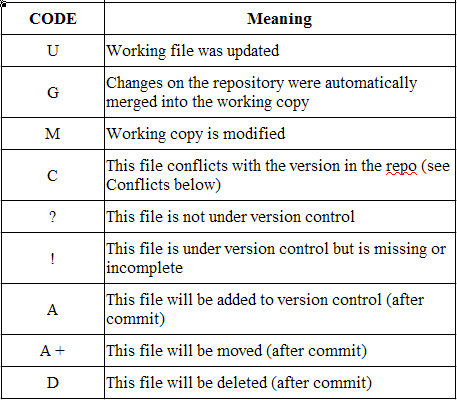
diff
To see what has changed in a file from the last version to the current version:
svn diff
More resources: You can always use “svn help” to see what else is there or take a look at the excellent book.
A typical SVN session
We assume you have created a working copy and there is already some content in your SVN that you share with others. All of this assumes that you are using some linux shell and are in the folder of your working copy. If you are in the wrong folder else it won’t work (most common source for error “Skipping .'” or “. is not a working copy”).
First thing you do is update (i.e. get the latest changes from the server), in case your teammates changed something. You don’t want to work on an old version!
svn update
Then you open some files, change some things (in "main.adb"), add a new file ("list.adb") and delete a different file ("array.adb"). After two hours work you need a coffee and it’s always a good idea to commit (i.e. send your changes to the server) before taking a longer break. Before you commit, you want to know what changed:
svn status
The message you get will look more or less like this:
M    main.adb
?    list.adb
!    array.adb
This means, you have modified "main.adb", there is a file "list.adb" that SVN doesn’t really know about and "array.adb" should be there, but SVN cannot find it.
If you just commit, only "main.adb" will get changed and on the next update "array.adb" will be restored in your working copy. Why? Because you need to tell SVN explicitly that you want a file to be added or deleted. So let’s do that.
svn add list.adb
svn del array.adb
Now let’s check the status again, the result will be:
M    main.adb
A    list.adb
D    array.adb
We are satisfied and commit the whole thing:
svn ci -m "Replaced array with list, added list.adb, deleted array.adb"
It is always a very good idea to write a meaningful commit message (the parameter -m), so that your teammates know what has been changed. It also makes it easier to go back to a specific version, e.g. the version just before you removed the array.
Creating a SVN working copy (checkout)
You will need to do this once to get the first working copy from the server to your computer.
svn co server_url folder_where_you_want_to_have_your_working_copy
The "server url" isn’t actually a URL like in the internet most of the time. It can be a path to a file (this would work if e.g. if you are inside the IMS and want to access a SVN that is located in a folder that you have mounted) or something with svn+ssh or the like. The one who created the SVN for you should tell you the server URL.
What is SVN?
To say it in very simple terms, SVN allows you to store your files on a server with a change history and have a "working copy" on any computer you like. You only work in your working copy and at some intervals tell SVN to copy the changes you make to the server. SVN will then overwrite the files on the server, but at the same time keep a record of what has changed. This means, that you can always go back to some earlier version – no more need for manual backup!
Also, SVN is great for working in groups. Because the files are on the server and everybody can have his own working copy on his own computer, you need not send around files with the changes you make. Every group member just makes her changes whenever she is ready to get the changes to the group, she just tells SVN to copy them to the server. The other group members only have to update their working copy with the newest version on the server and all have the same version of the code.
That’s actually about it, if you only want to use the basic functionalities. Just some terminology: Creating a working copy is called "checkout", copying code from the server to your working copy is called "update" and copying your changes from your working copy to the server is called "commit".
Installing a LaTeX package
Let’s say you want to create a A0 poster with LaTeX. You find an example on the internet that starts like this:
\documentclass[final]{beamer}
\usepackage[orientation=landscape,size=a0,scale=1]{beamerposter}
\usepackage{lipsum} % lorem ipsum
You download the example ‘example.tex’, run pdflatex on it and it fails like this:
me@mycomputer: pdflatex example.tex This is pdfTeX, Version 3.1415926-2.3-1.40.12 (TeX Live 2011) restricted \write18 enabled. entering extended mode (./example.tex LaTeX2e <2011/06/27> Babeland hyphenation patterns for english, dumylang, nohyphenation, lo aded. (/usr/share/texlive/texmf-dist/tex/latex/beamer/beamer.cls [...] ! LaTeX Error: File `beamerposter.sty' not found. Type X to quit or to proceed, or enter new name. (Default extension: sty) Enter file name:
This means, that this particular LaTeX package ‘beamerposter’ is not installed on your machine. Bad luck.
What to do if you have admin permissions
On linux, open your favourite package manager (e.g., Synaptic), type the name of the LaTeX package (in this case ‘beamerposter’). If the result shows a linux package like ‘texlive-latex-extra’ install it and be happy.
What to do if you do not have admin permissions
1. Download the package
Go to CTAN. Search for the missing package name and click on the best result. In the beamerposter case, you will end up here. To get to a page where you can actually download the package, you need to follow the link listed under CTAN path in the box at the bottom of the page. Click on ‘Download’ and save the ‘beamerposter.zip’ somewhere on your computer.
We will also assume that the second package, ‘lipsum’, is also missing, you would find it on CTAN here.
2. Extract the package to the correct location
The READMEs of LaTeX package usually contain "Put it in your tex folder" or "Put it somewhere where LaTeX can find it" (if they contain anything on installation at all). What this actually means is, that there are several possibilities. LaTeX searches for sources in a few directories, depending on your system and LaTeX distribution. Some examples for linux and texlive are:
/usr/share/texmf/
/usr/share/texlive/texmf/
/usr/local/share/texmf/tex/latex/
~/texmf/
If you don’t have admin permissions, the easiest is to create a folder ‘texmf’ in your home directory (~). You will need in this folder a subfolder ‘tex’, and then ‘latex’. So in total you should have:
~
   |- texmf/
      |- tex
         |- latex
In this folder, i.e., ~/texmf/tex/latex/, you can put any style files and latex will find them. It is advisable to create separate folders for separate packages, so we will extract the ‘beamerposter.zip’ that we downloaded into the folder ~/texmf/tex/latex/beamerposter/ and ‘lipsum.zip’ into the folder ~/texmf/tex/latex/lipsum/. This is what the folder looks like now:
~
   |- texmf/
      |- tex
         |- latex
            |- beamerposter
               |- beamerposter.pdf
               |- beamerposter.sty
               |- beamerposter.tex
               |- example.tex
               |- README
            |- lipsum
               |- lipsum.dtx
               |- lipsum.ins
               |- lipsum.pdf
               |- README
As you can see, we now have a ‘beamerposter.sty’. So if this were the only package we needed, we could skip step 3. Unfortunately we are still missing ‘lipsum.sty’, so this is what step 3 is about.
3. Create a style file
As we see, there is no style file ‘lipsum.sty’. There is only a ‘lipsum.ins’ and a ‘lipsum.dtx’ file. The .dtx file is only to create the documentation and we can ignore it here. To create the style file, run latex (latex, not pdflatex!) on ‘lipsum.ins’:
me@mycomputer: latex lipsum.ins
The result should look like this:
~
   |- texmf/
      |- tex
         |- latex
            |- beamerposter
               |- ...
            |- lipsum
               |- lipsum.dtx
               |- lipsum.ins
               |- lipsum.log
               |- lipsum.pdf
               |- lipsum.sty
               |- README
4. Try pdflatex again
And it should work (unless of course a different package is missing…).
Updating the Database
If you install fonts and in some other cases you need to update the LaTeX package database. On linux/texlive this is done with ‘texhash’:
me@mycomputer: texhash
More
This works for regular LaTeX packages. Bibtex packages go to texmf/bibtex. If there are fonts involved, you will need to put them in texmf/fonts and it might get tricky.
Typesetting text in math mode
In information retrieval and text classification, tf-idf plays a big role. Read the Wikipedia article to learn what it is about, here I want to deal with the problem of typesetting the formula in LaTeX.
The formula is log-weighted term frequency tf times inverse document frequency idf, if we naivly write this down, we arrive at this:
tf-idf_{t,d} = (1 +\log tf_{t,d}) \cdot \log \frac{N}{df_t}
When you look at the LaTeX output, you will see that several things go wrong. In math mode, LaTeX interprets two letters next to each other as a product of two variables. So the name tf becomes the mathematical expression “t times f” and is typeset accordingly. Also, in case of tf-idf, the name contains a hyphen. In math mode a hyphen between two expression is interpreted as a minus sign. So this is definitely not what we want.
How do we solve the problem? What we want is that this part is interpreted as normal text. One possibility to add text to equations is the command \mbox{} (another is the command \text{} which requires the amsmath package). So this is it:
\mbox{tf-idf}_{t,d} = (1 +\log \mbox{tf}_{t,d}) \cdot \log \frac{N}{\mbox{df}_t}
Stanford Tokenizer options for MATE Parser
These are the options I use for the Stanford tokenizer to preprocess my data for parsing with the MATE Parser:
normalizeParentheses=false,
normalizeOtherBrackets=false,
untokenizable=allKeep,
escapeForwardSlashAsterisk=false
This is the explanation of the options from the documentation:
- normalizeParentheses: Whether to map round parentheses to -LRB-, -RRB-, as in the Penn Treebank
- normalizeOtherBrackets: Whether to map other common bracket characters to -LCB-, -LRB-, -RCB-, -RRB-, roughly as in the Penn Treebank
- untokenizable: What to do with untokenizable characters (ones not known to the tokenizer). Six options combining whether to log a warning for none, the first, or all, and whether to delete them or to include them as single character tokens in the output: noneDelete, firstDelete, allDelete, noneKeep, firstKeep, allKeep. The default is “firstDelete”.
- escapeForwardSlashAsterisk: Whether to put a backslash escape in front of / and * as the old PTB3 WSJ does for some reason (something to do with Lisp readers??).
Backup slides in LaTeX beamer
Sometimes you have a LaTeX beamer presentation and want to have some "backup" slides that you may show if the audience is really interested in this detail, but otherwise not. There is a simple solution for that, the package appendixnumberbeamer.
You need to load the package in the preamble:
\usepackage{appendixnumberbeamer}
Then you just need to use "appendix" before the slides you want to have as backup:
\begin{frame}
Thank you for your attention!
\end{frame}

\appendix
% start backup slides here

\begin{frame}
\frametitle{Detailed Results of User Study}
...
\end{frame}
Remember to run pdflatex twice for the changes to take effect!
The slides in the appendix will not count towards the total slide number that is displayed for the normal slides. Backup slides will have their own slide numbers and total slide numbers counted anew from the start of the appendix. Very handy!
You can organize your backup slides in sections, these section will not appear in the table of content. If you use a beamer template with navigation (miniframes like in Szeged, or split like in Malmoe), the backup slides will not appear in the navigation. A cool thing is that on the backup slides, the navigation will show the structure of the backup slides, so you can easily change to the slide you want. A disadvantage is of course that everybody will see that you have more backup slides than actual slides 😉
Change the encoding of a file
My favourite topic is "encoding" (of course that was sarcasm). So my first post is about how to change the encoding of some text file from Latin-1 to UTF-8 on command line:
iconv -f latin1 -t utf8 source_file > target_file
Of course we need to know what encoding the file is in… which may be a topic for some future post.